
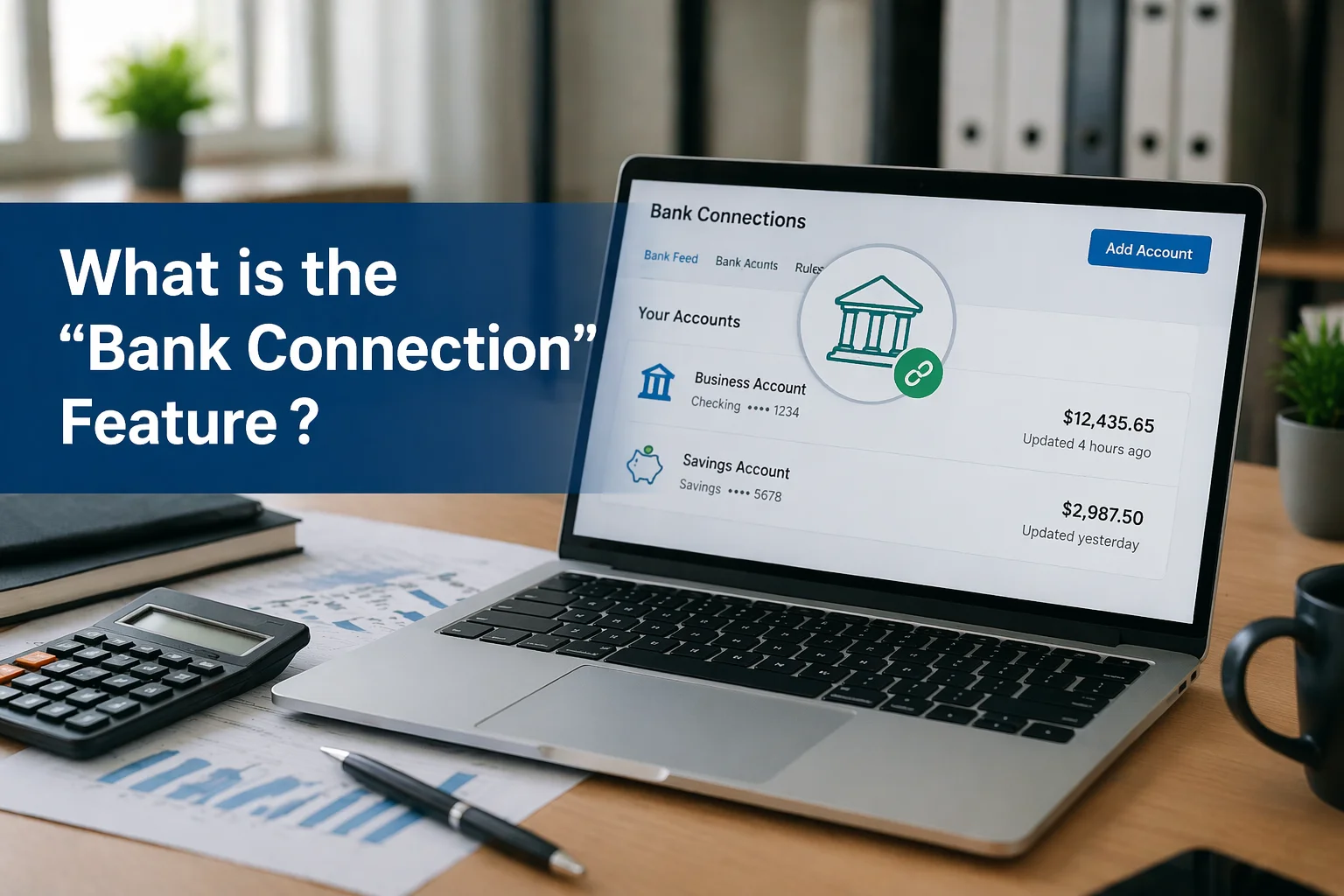
What is the “Bank Connection” Feature ?
The Bank Connection feature (also called bank feeds) is a system that links your bank account directly to accounting software. Instead of manually entering transactions or uploading bank statements, your financial data flows automatically into the system.
In Simple Terms:
- Your bank sends transaction data → directly into your accounting software
- You review, categorize, and reconcile transactions → quickly and accurately
Why It Matters:
- Eliminates manual data entry
- Reduces errors
- Saves time
- Keeps financial records up to date
This feature is a key part of modern cloud accounting because it enables real-time financial visibility.
What is the Bank Connection Feature in Xero?
In Xero, the Bank Connection feature (Bank Feeds) automatically imports your bank transactions into your Xero account from thousands of financial institutions worldwide.
Instead of uploading statements, Xero:
- Connects securely to your bank
- Pulls transaction data automatically
- Updates your financial records regularly
This allows businesses to monitor cash flow, reconcile transactions, and maintain accurate books with minimal effort.
Complete Guide to Xero Bank Connections (Bank Feeds)
Introduction
Efficient bookkeeping depends heavily on accurate and up-to-date financial data. Traditional methods of manually entering bank transactions are slow, error-prone, and inefficient. To solve this problem, Xero offers Bank Connections, a feature designed to automate the flow of financial data.
With bank feeds, businesses can reduce administrative workload, improve accuracy, and gain real-time insights into their finances.
How Bank Feeds Work in Xero
Step-by-Step Process:
- Connect your bank account to Xero
- Xero establishes a secure connection with your bank
- Transactions are automatically imported into Xero
- You review and categorize transactions
- Reconcile them with invoices, bills, and records
This process transforms bookkeeping from a manual task into an automated workflow.
Key Features of Xero Bank Connections
Automatic Transaction Import
Xero automatically pulls transactions from your bank.
Benefits:
- No need to upload statements manually
- Saves hours of work
- Ensures real-time updates
Multi-Bank Connectivity
Xero supports connections with over 21,000 financial institutions.
Features:
- Connect multiple bank accounts
- Manage all accounts in one place
- Import up to 12 months of historical data
Real-Time Financial Visibility
With continuous updates, your financial data is always current.
Advantages:
- Track cash flow instantly
- Monitor income and expenses
- Make faster business decisions
Automated Transaction Matching
Xero uses AI and smart rules to match transactions.
How it helps:
- Suggests matches for invoices and bills
- Reduces reconciliation time
- Improves accuracy
Bank Rules for Automation
You can create rules for recurring transactions.
Example:
- Rent → automatically categorized as “Expense”
- Salary → categorized under “Payroll”
Benefit:
- One-click approvals
- Faster bookkeeping
Manual Import Option
If your bank does not support direct feeds, Xero allows manual uploads.
Supported formats:
- CSV
- OFX
- QIF
- QBO
- QFX
Process:
- Export data from your bank
- Upload into Xero
- Review and finalize
Benefits of Using Bank Connections in Xero
1. Saves Time
Xero users save several hours weekly by automating transaction imports and reconciliation.
Improves Accuracy
Manual entry often leads to:
- Typing errors
- Missing transactions
Automation ensures:
- Accurate records
- Consistent data
Real-Time Financial Insights
With up-to-date data, businesses can:
- Monitor cash flow daily
- Identify trends quickly
- Make informed decisions
Faster Reconciliation
Reconciling transactions becomes quick and easy.
Why?
- Suggested matches
- Automated categorization
- One-click approvals
Better Cash Flow Management
You always know:
- How much money is coming in
- How much is going out
This helps avoid:
- Cash shortages
- Overspending
Enhanced Security
Xero uses secure, encrypted connections.
Important points:
- Data is shared only between bank and Xero
- Xero cannot move money or make payments
- Only authorized users can access data
How to Set Up Bank Connections in Xero
Step 1: Connect Your Bank
- Go to the bank accounts section in Xero
- Select your bank
- Enter login credentials securely
Step 2: Authorize the Connection
- Grant permission for data access
- Confirm secure connection
Step 3: Import Transactions
- Transactions start flowing automatically
- Historical data may also be imported
Step 4: Review Transactions
- Check imported transactions
- Ensure accuracy
Step 5: Reconcile Transactions
- Match transactions with:
- Invoices
- Bills
- Expenses
Daily Workflow Using Bank Feeds
A typical daily process looks like this:
- Open Xero dashboard
- View newly imported transactions
- Review suggested matches
- Approve or adjust categories
- Reconcile transactions
This process usually takes just a few minutes per day.
Security and Data Protection
Security is a major concern when connecting bank accounts.
Xero ensures:
- Encrypted data transmission
- Secure authentication methods
- Restricted access control
- No transaction permissions (view-only access)
This means your financial data is safe while still being accessible.
Common Use Cases
1. Small Businesses
- Track daily income and expenses
- Simplify bookkeeping
2. Freelancers
- Monitor payments from clients
- Manage personal business finances
3. Growing Companies
- Handle multiple bank accounts
- Automate financial processes
Challenges Without Bank Connections
Without this feature, businesses face:
- Manual data entry
- Increased errors
- Delayed financial insights
- Time-consuming reconciliation
Xero eliminates these challenges through automation.
Why Businesses Prefer Xero for Bank Connections
Businesses choose Xero because it offers:
- Easy setup
- Wide bank support
- Real-time updates
- Strong security
- Intelligent automation
These features make Xero one of the most efficient accounting tools available today.
Best Practices for Using Bank Feeds
To get the most out of Xero:
- Reconcile transactions daily
- Set up bank rules for recurring entries
- Regularly review imported data
- Keep user access controlled
Conclusion
The Bank Connection feature in Xero is a powerful tool that transforms bookkeeping into a fast, accurate, and automated process. By connecting your bank accounts directly to Xero, you eliminate manual work, reduce errors, and gain real-time visibility into your finances.
From automatic transaction imports to intelligent reconciliation, this feature ensures your financial records are always up to date. Whether you are a freelancer, a small business owner, or managing a growing company, bank connections provide the efficiency and control needed to succeed in today’s competitive environment.
In short, Xero’s bank feeds are not just a convenience—they are a critical component of modern financial management.
Setting up your first bank feed: step by step
Connecting your first bank feed usually takes under ten minutes.
All you need is your online banking login and a quiet moment. A calm five minutes is enough.
Before you start, gather four things for a smooth setup.
- Your online banking username and password.
- A phone or device for two-factor codes.
- The exact account name as shown at your bank.
- A start date in mind, such as the first of the month.
Here is the practical flow, with tips the basic guides skip:
- In Xero, go to Accounting, then Bank accounts, and click Add bank account.
- Search for your bank by name. If it appears, a direct feed is available.
- Log in through your bank’s own page and approve read-only access.
- Pick a start date. A recent date means less historical cleanup.
- Confirm the feed and watch the first import arrive within minutes.
- Reconcile the first week by hand to learn the matching workflow.
Xero usually imports the first batch within a few minutes. Check the bank account screen to confirm transactions are flowing in.
Then create bank rules for rent, software subscriptions, and other repeating items. Your daily review drops to a few minutes.
When bank feeds break: troubleshooting guide
Bank feeds sometimes stop refreshing. Most failures follow a pattern. Work through this list before contacting support.
- Changed your banking password? Re-authorize the feed in the bank account settings.
- Your bank added a new verification step. Complete it in your browser, then refresh the feed.
- Transactions are missing. Pending items appear only after they clear the bank.
- A duplicate account appeared after reconnecting. Check balances before deleting anything.
- The feed shows an error. Note the exact message, reconnect, and wait 48 hours.
If you contact support, have these three facts ready:
- The exact error message shown on the bank account tile.
- The date the feed last refreshed successfully.
- Whether you changed a password or added security recently.
Keep a note of the date the feed broke. It speeds up support a lot. Never delete the original account until the new feed is stable.
Reconnecting is safe. Xero asks the bank for data again, but it never touches your money.
FAQs
Q: Is it safe to connect my bank account to Xero?
A: Yes. The connection is read-only, so Xero can import transactions but never move money.
You can revoke access at any time from your bank’s connected-apps page.
Q: Will Xero see or store my banking password?
A: No. You type your credentials into your bank’s own login page, not into Xero.
The bank then issues Xero a limited token that only allows reading transactions.
Q: Can I connect more than one bank account?
A: Yes. Connect as many accounts as you like, and each gets its own feed on the dashboard.
Many businesses connect a checking account, a savings account, and a credit card feed.
Q: Why is there a delay before transactions appear?
A: Banks finalize transactions before releasing them. Most cleared items arrive within two business days.
Pending charges and weekend activity show up after the bank processes them.
Q: What if my bank is not supported?
A: You can still import statements manually. Export CSV, OFX, or QIF files and upload them.
Manual imports work well as a bridge, since banks add direct feed support over time.